

Due to an unfortunate incident with the Last Pass extension on Chrome. I went to change a password with read only permissions and instead ended up locking myself out of the administrator account in vCenter. (yes, I know I shouldn’t have been using it in the first place).
Anyway… Having recently upgraded the environment to vSphere 8.0.3 I was forced to sift through Broadcom’s, admittedly well structured, documentation to rectify the situation. I made notes of the following so I wouldn’t have to look it all up again in the future.
First and Foremost: Broadcom’s number one step in just about everything (they aren’t wrong): Take a Snapshot of the appliance prior to doing anything.
- After taking a snapshot, reboot the vcenter appliance, use the console from the specific ESX server it’s running from. (disable VMotion if applicable first)
- Press the ‘e’ key after the Photon OS starts to enter the GNU GRUB Menu
- Go to the end of the line beginning with the word ‘Linux’ and append the following: rw init=/bin/bash
Booting into VCSA (if you are completely locked out):
- Continue booting with by using the: ‘F10’ Key
- Run the following command: mount -o remount,rw /
Reset the Root password in VCSA
For Vcenter 7 and below:
- Log into the shell either by SSH or rebooting the appliance and mounting the partition.
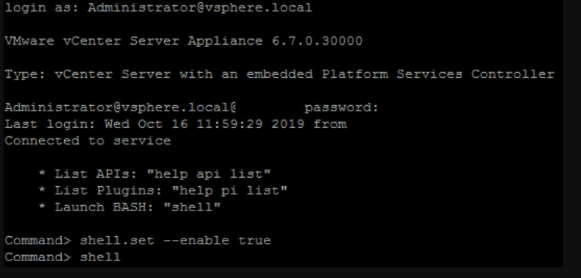
- At the command> prompt enable the shell by: shell.set –enable true
- Run the command: shell
- Run the. Following to change to root shell: sudo -i
- Unlock root account with: pam_tally2 –user root –reset
- Set new root password: sudo passwd root
For Vcenter 8 and below:
Reset password for SSO User in VCSA:
- Log into the shell either by SSH or rebooting the appliance and mounting the partition.
- At the command> prompt enable the shell by: shell.set –enable true
- Run the command: shell
- To reset the root account: /usr/sbin/faillock –user root –reset
- To reset password: passwd
- Set new root password: sudo passwd root
- Log into the shell either by SSH or rebooting the appliance and mounting the partition.
- At the command> prompt enable the shell by: shell.set –enable true
- Run the command: shell
- Run the command: /usr/lib/vmware-vdir/bin/vdcadmintool which will bring up the following menu:
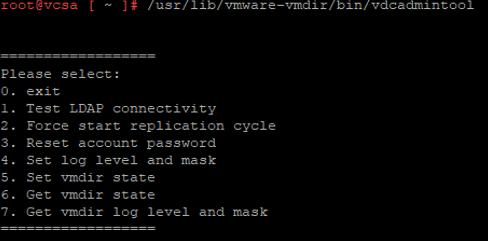
- Press 3 to reset account passwords when prompted to, enter the full UPN name: Example: administrator@vsphere.local which will generate a new password.